How to create and verify your Google Business Profile
Set up your profile the right way the first time, choose storefront or service area, and get through Google’s verification, including the video, without delays.
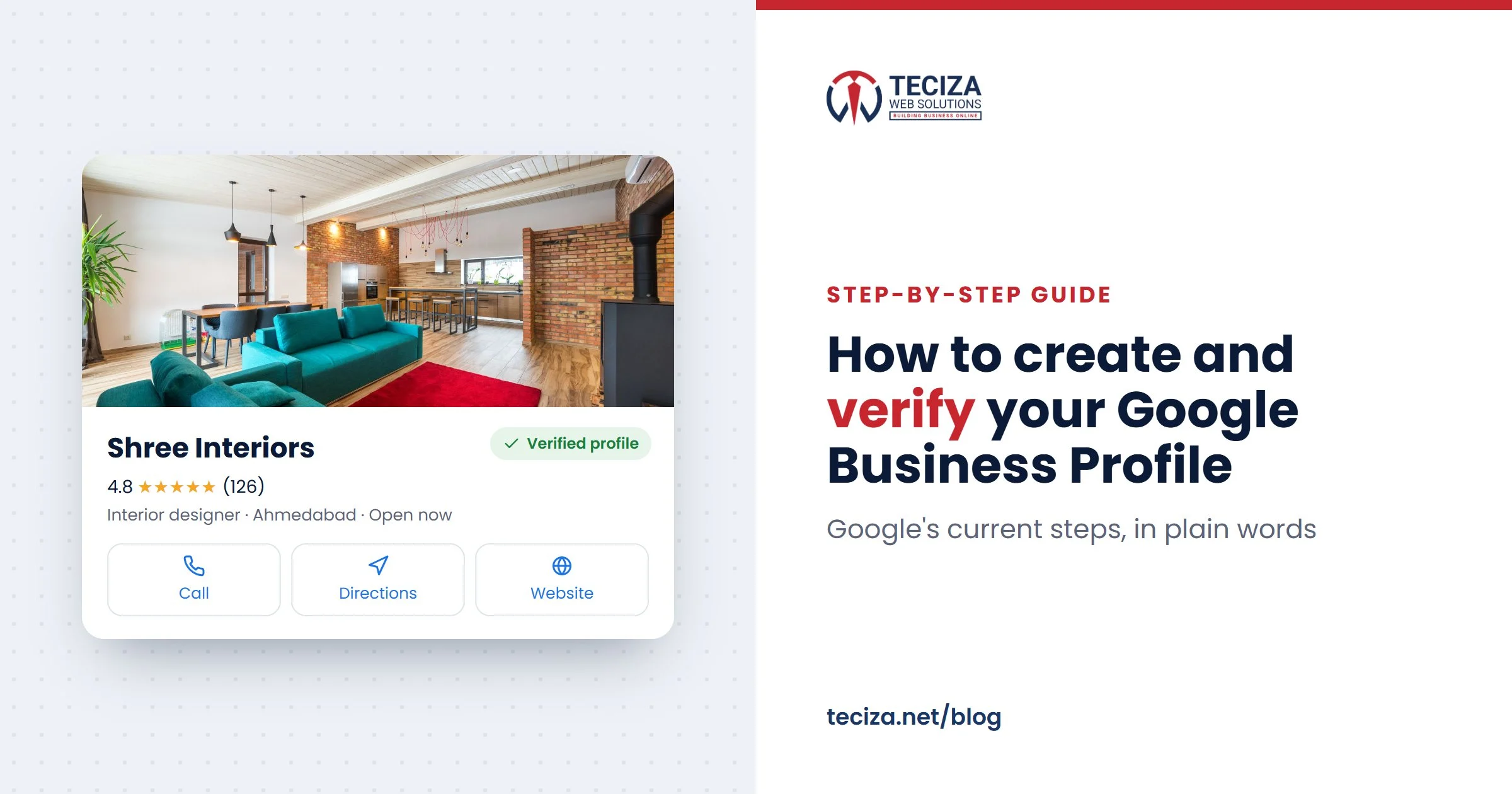
Short answer: to create a Google Business Profile, go to business.google.com/create, sign in with a Google account your business owns, then enter your business name, category, address or service area, phone number and website. After that you verify the profile. Google decides how: often with a short video recorded on your phone. Your profile shows on Google Search and Maps only after it is verified.
A Google Business Profile is free. It is the box with your name, rating, photos, phone number and directions that people see when they search for your business or for a service near them. This guide follows Google’s current rules and adds what we see when we set up and fix profiles for clients.
Before you start: have these ready
- A Google account the business keeps. Use the owner’s account or a business email, not a staff member’s personal account and not your agency’s. Google suggests signing up with your business email address. Other people can be added as managers later.
- Your real business name, exactly as it appears on your signboard, letterhead and website.
- Your address if customers visit you, or the areas you serve if you go to them.
- A phone number you answer. Verification codes can come by call or text, and they don’t get through IVR menus.
- Your website, if you have one.
Check first: search for your business name on Google Maps. If a profile already exists, don’t make a second one: claim it, or request ownership if someone else has verified it. Google can suspend accounts that have several profiles for the same business in the same area.
How to create a Google Business Profile, step by step
- On a computer, sign in to your Google account and open business.google.com/create.
- Type your business name. If Google suggests your business as you type, pick it: that profile already exists and you can claim it.
- Search for your business category and choose the most specific one that fits, for example “Bakery” rather than “Food”. Click Next.
- Choose whether you have a location customers can visit. Yes: enter your address or place the pin on the map. No: go to the next step.
- If you serve customers at their place, add the cities, PIN codes or areas you serve (up to 20).
- Enter your phone number and website, then click Next.
- Click Finish, then Verify now, or Verify later if you need time to prepare.
Storefront, service area or both?
This choice decides whether Google shows your address and what you will need to show to get verified, so get it right at the start.

| Your business | Choose | Address on Google |
|---|---|---|
| Customers visit your office, shop or clinic, and it is staffed during your hours | Location: Yes | Shown |
| You go to customers (repairs, cleaning, home tutors) and nobody visits you | Location: No, plus service areas | Hidden |
| Customers visit you and you also go to them | Location: Yes, plus service areas | Shown |
Google’s rules to keep in mind:
- A virtual office or a PO box doesn’t qualify. A co-working space qualifies only with clear signage, staff present and customers received during business hours.
- If you work from home and customers don’t visit, hide your address.
- Keep service areas within about 2 hours’ drive of your base.
- One profile per location.
How Google Business Profile verification works
Google picks which verification methods you see, based on your type of business, your region, your hours and the public information about you. You can’t change that list, and you may be asked for more than one method.
| Method | How it works |
|---|---|
| Video recording | A short live video recorded on your phone through your Business Profile. Google recommends it when you are eligible. |
| Live video call | A call with someone from Google, at your business, during your business hours. Not offered to every business. |
| Phone or text | A code sent by call or SMS to your business number. |
| Steps sent to an email address you can open. | |
| Postcard | A 5-digit code posted to your address. It usually arrives within 14 days and expires after 30 days. |
Google says reviews take up to 5 business days, sometimes longer. Some businesses are verified instantly when their website is already verified in Google Search Console, so if you have a website, set up Search Console first.
Video verification: what to record
Google recommends the video when your business is eligible. It is easy to pass if you plan it before you press record.

- On your phone, open your Business Profile, signed in with the account that manages it.
- Tap Get verified, then Business video, then Next.
- Allow camera, microphone and location access when asked.
- Tap Start recording, record, then stop. Watch it back and tap Try again if you need to.
- Tap Upload video.
Google’s rules for the video
- One live take, unedited, with no breaks, at least 30 seconds long. You can’t upload a video you recorded earlier.
- Recorded and uploaded from a phone, through your Business Profile.
- No other people’s faces, and no bank account, tax or ID numbers on screen.
What to show
| Show | Office, shop or clinic | Service-area business |
|---|---|---|
| Where you are | Street sign, building name or number, nearby shops | Street signs or landmarks at your base address |
| That the business exists | Your signboard, with the name exactly as on the profile, and the shop or office | Your tools, equipment, products, workspace, business cards or uniform |
| That you run it | Something only staff can reach: unlocking the door, the billing counter, a storeroom | Doing the work, unlocking a branded vehicle, or an invoice or utility bill in the business name |
Our tips
- Walk the route once without recording. Plan the path from the road to your door to the inside, so the video works in one take.
- Your signboard must match the profile name. A name with extra keywords won’t match your board, and that is a common reason for a rejected video.
- Office in a commercial building? Start at the building’s name board on the road, show the floor board in the lobby that lists your office, then your office number and name plate on the door, then go inside.
- Record in good light and move slowly. A steady, clear video is easier for Google to check.
If verification fails or gets stuck
- You see “Review issues”: the video didn’t meet the rules. Tap Review issues and record again, with everything from the first video plus what was missing.
- “Get verified” shows again: verification wasn’t completed. Try again, or use another method Google offers.
- Waiting for a postcard: don’t edit your name, address or category, and don’t request a new code. Either one makes the current code useless and adds delay.
- Profile suspended: compare it with Google’s guidelines, fix what breaks them (often the name or the address), then ask Google to review it.
Never share your verification code. Google never asks for it and says not to give it to anyone, including people who manage your profile. A genuine agency doesn’t need the code or your password: you add them as a manager and you stay the owner.
After verification: complete your profile in the first week
A verified profile with only a name and a phone number gives people little reason to choose you. Fill in the rest:
- Categories: the most specific primary category, plus only the few secondary ones that describe your core business. Google asks for as few as possible.
- Hours: your regular hours for customers, plus special hours for holidays and festivals such as Diwali.
- Description: what you do, for whom, where, and since when. Google doesn’t allow links, prices or offers in the description.
- Services and products: each one in the words your customers use, with a short description.
- Photos: your logo, a cover photo and real photos of your place, team and work. Add new ones every month.
- Website link with tracking: add a tagged link such as
?utm_source=google&utm_medium=organic&utm_campaign=gbp, so Google Analytics shows the visits that came from your profile. - Reviews: ask real customers for a review with your profile’s review link, and reply to every review, good or bad. Never buy or write fake ones.
- Posts: share updates, offers and recent work at least twice a month.

Already have a profile? The Google Business Profile optimisation checklist on our service page has 10 points you can tick in a few minutes. To rank higher in your area, the profile is one part; local SEO also covers your website, listings and local links (see our local SEO checklist), and reputation management covers reviews.
Why your profile matters even more with AI search
Google now answers many searches with AI: AI Overviews at the top of the results and the conversational AI Mode. Google says these answers can include information about local businesses, and that a Business Profile helps your products and services show up both in AI responses and in normal search results.
For a business, the practical point is simple: your categories, services, hours, photos and reviews are what Google works from when it describes you, in a map listing or in an AI answer. A complete, correct profile is the most direct way to be included. Google ranks local results mainly on relevance, distance and prominence (how well known the business is, including its reviews), and you can’t pay for a better local ranking. For the bigger picture, read our guides to Google AI Mode and digital marketing in the AI era.
How to edit your Google Business Profile later
- On a computer: sign in, open business.google.com, select Edit profile, make your changes and select Save.
- In the Google Maps app: tap Business at the bottom right, then Edit profile, then Save.
Google reviews changes before they go live. If you change your business name, you might need to verify again; if you move to a new address, you must verify again. Other people can suggest edits to your profile too, so check it every few weeks and correct anything that is wrong.
Common questions
Is a Google Business Profile free?
Yes. Creating, verifying and managing a profile costs nothing. Ads on Google Maps are a separate, paid Google Ads product.
How long does verification take?
Google says reviews take up to 5 business days, sometimes longer. A postcard usually arrives within 14 days.
Can I choose the verification method?
No. Google decides which methods to offer for your business, and you can’t change them.
Can I get a profile without a shop or office?
Yes, as a service-area business with your address hidden, as long as you meet customers in person at their place. A virtual office or a PO box doesn’t qualify.
Should I add keywords such as “best” or my city to the business name?
No. Use your real name as it appears on your signboard. Extra keywords break Google’s rules, can stop verification and can get the profile suspended.
Can someone else manage my profile?
Yes. Add them as a manager with their email address. You stay the owner and can remove them at any time.
Creating the profile is quick. Getting it verified and complete is where most businesses get stuck. If you’d like a hand, we set up, verify and manage Business Profiles for businesses in Ahmedabad, across India and abroad.
Sources: Google Business Profile Help: Create a Business Profile, Verify your business on Google, Verify your business with a video recording, Guidelines for representing your business on Google, Edit your Business Profile; Google Search Central: Optimizing your website for generative AI features on Google Search. Checked November 2026.
Written by the Teciza Team: digital marketing, software and website specialists in Ahmedabad since 2015. Last updated 17 Nov 2026.
More guides
Google Maps ranking in Ahmedabad: why it changes from area to area
Why the same Google Maps search shows different businesses in Bopal and Naroda, what Google ranks on, what you control, and how to check your position…
Best SEO company in Ahmedabad: how to choose one you can trust
The checks to make, questions to ask and red flags to avoid before you hire an SEO company, plus what honest work and a useful report…
The importance of digital marketing in the AI era
How customers now find businesses through Google's AI answers, Maps, ChatGPT and WhatsApp, why the basics count for more, and a checklist to get your business…
Want help with this?
- Tell us what you needMarketing, software or a website.
- We look at your businessYour site, your market, your goals.
- We call you backWith ideas and, if you want, a quote.
Tell us about your business
A few short questions. We reply by call or WhatsApp, 7 days a week.
Your details are only used to reply to you. Need a detailed quote? Fill our project brief.